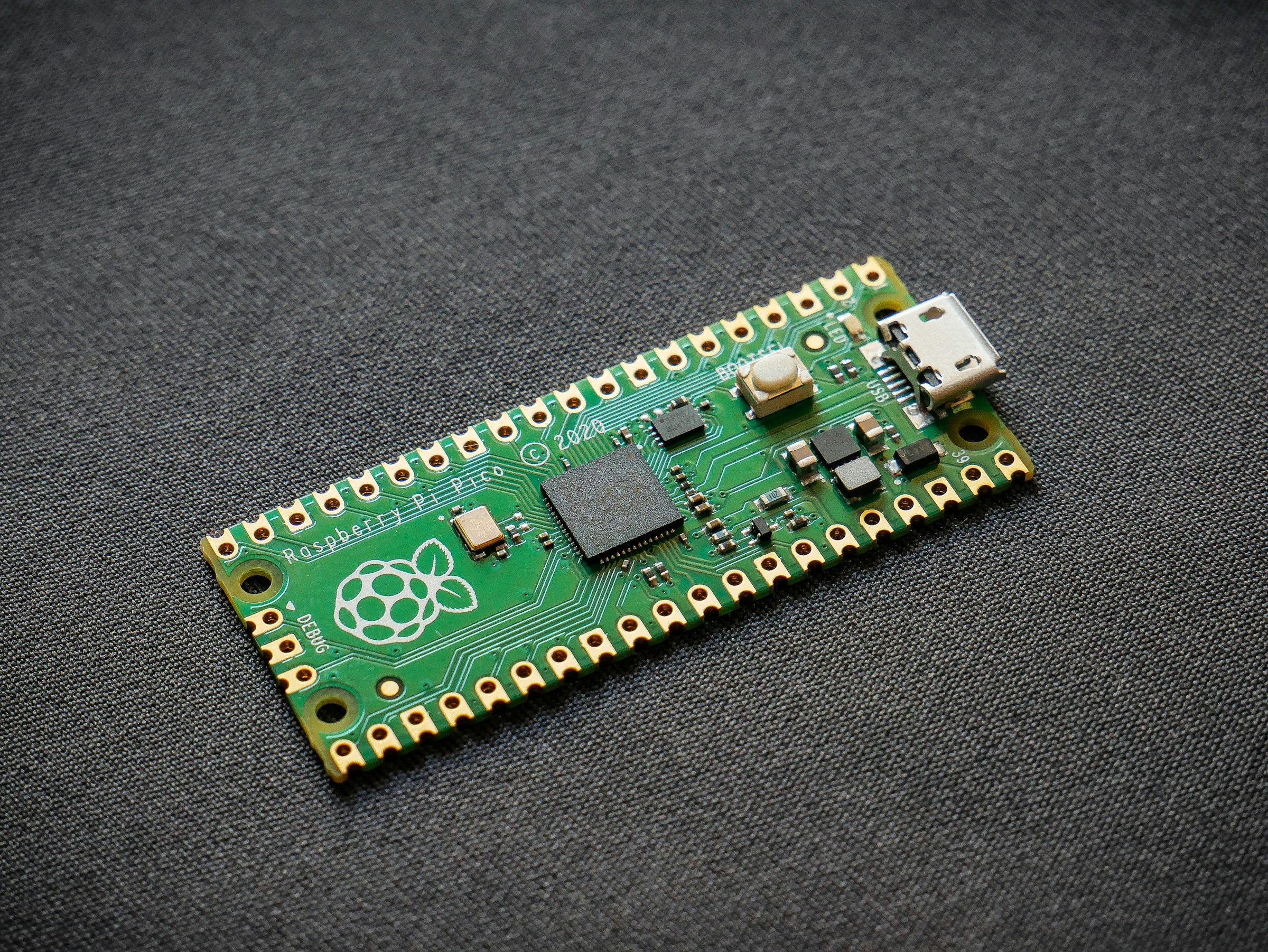
Being the geek that I am, I do all my development inside a Fedora Toolbx (formerly Fedora Toolbox) container, because I like keeping my base system clean and reproducible. I plugged a Raspberry Pi Pico W into my ThinkPad the other day, planning to do something simple; maybe blink an LED, maybe write a little MicroPython, the usual microcontroller hello-world stuff. What followed was a two-hour debugging adventure that taught me more about USB serial, Linux device permissions, container namespaces, and the Pico W’s hardware quirks than I ever intended to learn in one sitting.
I’m documenting it all here so you don’t have to repeat my mistakes.
The Setup
Here’s what I’m working with:
- Fedora 43
- Fedora Toolbx (rootless Podman container for development)
- Raspberry Pi Pico W
- MicroPython v1.28.0 (RPI_PICO_W build, released 2026-04-06)
- Claude Code running inside the Toolbox container (my AI pair-programming buddy)
The toolbox container is where I live, for both work and home projects. Code editing, building, and testing all happens in there. The host system stays vanilla Fedora with everything containerized. It’s great for keeping things reproducible, but it introduces some interesting challenges … opportunities … when you need to talk to actual hardware, though way less than you might think, to be honest.
Want to see how I work? Here’s my personal toolbox image.
Gotcha #1: UF2 Reflashing Preserves the Filesystem
When you flash a new UF2 firmware file onto the Pico, it only overwrites the firmware sectors. MicroPython’s internal filesystem (LittleFS) lives in a separate area of flash and survives the reflash.
So if you have a bad main.py that crashes on boot, and you reflash the firmware to fix it, that bad main.py is still there. The board boots, loads the new firmware, runs the old crashing main.py, and you’re right back where you started.
The fix: use flash_nuke.uf2 first to completely erase all flash memory, then flash your firmware onto a clean board.
# Hold BOOTSEL while plugging in the Pico
# It mounts as a drive called RPI-RP2
cp flash_nuke.uf2 /run/media/$USER/RPI-RP2/
# Board reboots, flash is wiped
# Hold BOOTSEL and plug in again
cp RPI_PICO_W-latest.uf2 /run/media/$USER/RPI-RP2/
# Board reboots with clean firmware, no leftover main.py
You can download both files from Raspberry Pi’s documentation:
- flash_nuke.uf2: datasheets.raspberrypi.com/soft/flash_nuke.uf2
- MicroPython Pico W firmware: micropython.org/download/RPI_PICO_W
Gotcha #2: Serial Access from Fedora Toolbx Doesn’t Work (By Design)
If you’re a Toolbx user, this one matters. You cannot do serial I/O to /dev/ttyACM0 from inside a toolbox container. It’s not a bug, it’s a fundamental limitation of rootless Podman’s security model.
Three layers block you:
- User namespace UID/GID remapping - the device appears as
nobody:nobodyinside the container, regardless of host permissions - cgroup v2 eBPF device policy - rootless Podman’s cgroup controller blocks character device access by default
- ioctl authorization - the kernel’s CDC ACM driver may also reject certain operations from containerized processes, though this is less consistently documented than the first two
I researched something like a dozen potential workarounds: --device flags, --group-add keep-groups, --device-cgroup-rule, bind mounts, custom images, TAG+="uaccess" udev rules, privileged mode. None of them work for rootless Podman toolbox containers. Trust me, I checked.
What does work: flatpak-spawn --host, which runs commands on the host system from inside the container:
# Inside toolbox:
flatpak-spawn --host python3 my_pico_script.py
It’s not elegant, but it works.
Gotcha #3: pyserial Doesn’t Work - Use Raw termios Instead
Even when you’re running on the host (via flatpak-spawn --host), Python’s pyserial library fails with I/O errors when connecting to the Pico W. The Pico W’s TinyUSB CDC implementation requires DTR to be asserted to consider the connection active, and pyserial’s default initialization doesn’t set it in a way the Pico expects.
The workaround: skip pyserial entirely and use raw file descriptors with termios:
import os, termios, tty, time

fd = os.open("/dev/ttyACM0", os.O_RDWR | os.O_NOCTTY)
tty.setraw(fd)
new = termios.tcgetattr(fd)
new[6][termios.VMIN] = 0   # return immediately with available bytes
new[6][termios.VTIME] = 10  # 1-second read timeout (units of 0.1s)
termios.tcsetattr(fd, termios.TCSANOW, new)

# Now you can write and read
os.write(fd, b"\x03\x03\r\n")  # Ctrl-C + enter
time.sleep(1)
response = os.read(fd, 8192)
print(response.decode(errors="replace"))

os.close(fd)
The VMIN=0, VTIME=10 settings are crucial. Without them, os.read() blocks indefinitely waiting for a newline character that the MicroPython REPL never sends in the format the tty line discipline expects. This isn’t Pico-specific, it’s how Linux canonical mode works for any USB CDC ACM device. Setting raw mode with a read timeout makes everything work smoothly.
Gotcha #4: Device Permissions on Fedora
By default, Fedora creates serial device nodes as root:dialout with mode 0660. If your user isn’t in the dialout group, you’ll get a permission denied error.
Option A - add yourself to the dialout group (more secure, the standard Linux way):
sudo usermod -aG dialout $USER
# Log out and back in for the change to take effect
Option B - add a udev rule to make Pico devices world-readable:
# /etc/udev/rules.d/99-pi-pico.rules
SUBSYSTEM=="tty", ATTRS{idVendor}=="2e8a", ATTRS{idProduct}=="0005", MODE="0666"
Then reload:
sudo udevadm control --reload-rules
# Unplug and replug the Pico
Note: I initially thought I also needed a ModemManager ignore rule (ID_MM_DEVICE_IGNORE), but after testing, ModemManager probes the Pico W for about 30 seconds, determines it isn’t a modem, and leaves it alone, it looks like. No interference. If you’ve seen advice elsewhere suggesting you need to stop ModemManager or add ignore rules for the Pico, it’s probably not necessary with current firmware and ModemManager versions. The real problem is almost always something else.
Gotcha #5: The ttyACM Number Shuffle
When USB CDC devices reset (which happens during firmware flashing, soft reboots, or interrupted serial sessions), the kernel sometimes assigns a new device number. Your /dev/ttyACM0 becomes /dev/ttyACM1, then back to ttyACM0 on the next plug cycle.
Use the stable udev symlink instead:
ls /dev/serial/by-id/
# usb-MicroPython_Board_in_FS_mode_e6614864d3593b38-if00
That path always points to the right device regardless of the ACM number.
BONUS Gotcha #1: “Board in FS Mode” Doesn’t Mean What You Think
This is really more of a “Chris didn’t know this going in” thing…
When you plug in a Pico running MicroPython and run lsusb, you’ll see something like this:
Bus 003 Device 036: ID 2e8a:0005 MicroPython Board in FS mode
I spent an embarrassing amount of time thinking “FS mode” meant “File System mode” like the board was exposing a USB mass storage filesystem. It’s not. “FS” stands for “Full Speed”, referring to the USB 1.1 Full Speed standard at 12 Mbps. The Pico is exposing a perfectly normal USB CDC serial interface for its MicroPython REPL. There is no mass storage device. You’re looking at a serial port.
If you’re scratching your head wondering why your Pico shows up as ttyACM0 but doesn’t mount as a drive, this is why.
BONUS #2: Pico vs. Pico W Firmware - The One That Really Bit Me
And THIS is more of a “Chris is a bonehead” kinda thing…
The Raspberry Pi Pico and the Pico W look almost identical, but they need completely different MicroPython firmware builds. If you flash the wrong one, things will appear to work at first and then go sideways in confusing ways.
Here’s one way: on the standard Pico, the onboard LED is wired directly to GPIO25. On the Pico W, GPIO25 is used for SPI communication with the CYW43 WiFi chip, and the LED is controlled through that chip instead. The standard Pico firmware has no CYW43 driver.
I knew this.
Did I check? No.
Did I think about it when I continued to struggle with this over the course of a half hour or so? Also No.
What happens if you flash standard Pico firmware on a Pico W:
- You get a working MicroPython REPL & everything seems fine
- You write a
main.pythat usesPin('LED')to blink the LED - The code appears to work interactively at the REPL
- You soft-reset so
main.pyruns at boot - The board crashes - GPIO25 toggling creates bus contention with the WiFi chip
- USB CDC dies, you get
OSError: [Errno 5] Input/output erroron every serial write - Unplugging and replugging doesn’t help -
main.pyruns and crashes again immediately
You can verify which firmware you’re running with:
>>> import sys
>>> print(sys.implementation._build)
RPI_PICO_W
If that says RPI_PICO and you’re holding a Pico W, stop. Go get the right firmware from https://micropython.org/download/RPI_PICO_W.
The Working Setup
After all the debugging, here’s what actually works for programming a Pico W from Fedora Toolbx:
- Flash the correct firmware: Use
RPI_PICO_W(notRPI_PICO), always verify withsys.implementation._build - Set device permissions: Either join the
dialoutgroup or add a udevMODE="0666"rule - Access serial from the host: Use
flatpak-spawn --host python3from inside the toolbox - Use raw termios, not pyserial: Skip the DTR/RTS headaches entirely
- When the board is bricked: Hold BOOTSEL, plug in, nuke with
flash_nuke.uf2, then reflash
A Note About AI Pair Programming
I should mention that I did this entire debugging session paired with Claude Code, Anthropic’s AI coding assistant running in my terminal. It was genuinely useful for the iterative serial debugging and trying different Python approaches to serial I/O, researching USB device enumeration, suggesting the termios workaround. It also led me down a few wrong paths (the whole ModemManager rabbit hole, for instance). Much like pairing with a human colleague, the AI had good instincts but sometimes needed to be redirected. I think the session would have taken twice as long without it, but it also would have been more focused if I’d noticed the “Pico W” printed on the board earlier.
That said, the fact that an AI running inside a toolbox container can help you program a microcontroller connected to the host machine by orchestrating Python scripts through flatpak-spawn --host is… kind of wild, when you think about it.
Conclusion
The Raspberry Pi Pico W is a great little board, and MicroPython makes it accessible and fun. But developing on Fedora with toolbox containers adds some layers of complexity that the Raspberry Pi documentation doesn’t cover. The biggest lesson from this adventure: when serial I/O fails with cryptic errors, check the firmware first. Everything else - permissions, ModemManager, container namespaces - is secondary to having the right firmware on the right board.
I hope this saves someone a couple hours of head-scratching.
Signed, Chris (the human)
Photo by Vishnu Mohanan on Unsplash